Changelog
0.6.0 — 2026-07-21
Added
See your next meeting from the Mac menu bar. Reus now puts the current or next meeting and its countdown beside the Reus icon. Click it for a seven-day agenda with invitation status, one-click meeting links, and Record, Pause, Resume and Stop controls — without opening the main window.
Reus Weekend is on by default. Saturdays and Sundays stay free of automatic recordings. Reus still detects calls and asks, and manual recording keeps working; turn it off under Settings → General if you want automatic recording on weekends.
Download an on-device transcription model before you need it. Settings now shows each model's real desktop download size and whether it is ready, lets you start the download directly, and keeps live progress visible while the model and its optional acceleration files arrive.
Send recordings to your own Whisper server. Choose Custom API under Settings → Transcription and point Reus at any OpenAI-compatible
/audio/transcriptionsendpoint. Whisper can run on the same Mac or on an HTTPS-enabled Linux or Mac server. With Custom API selected, new and re-run transcriptions use that endpoint; Reus saves the returned transcript and can hand it to your local Hermes agent afterward. Pick your own model and optional API key; same-Mac services usually need no key and can use local HTTP.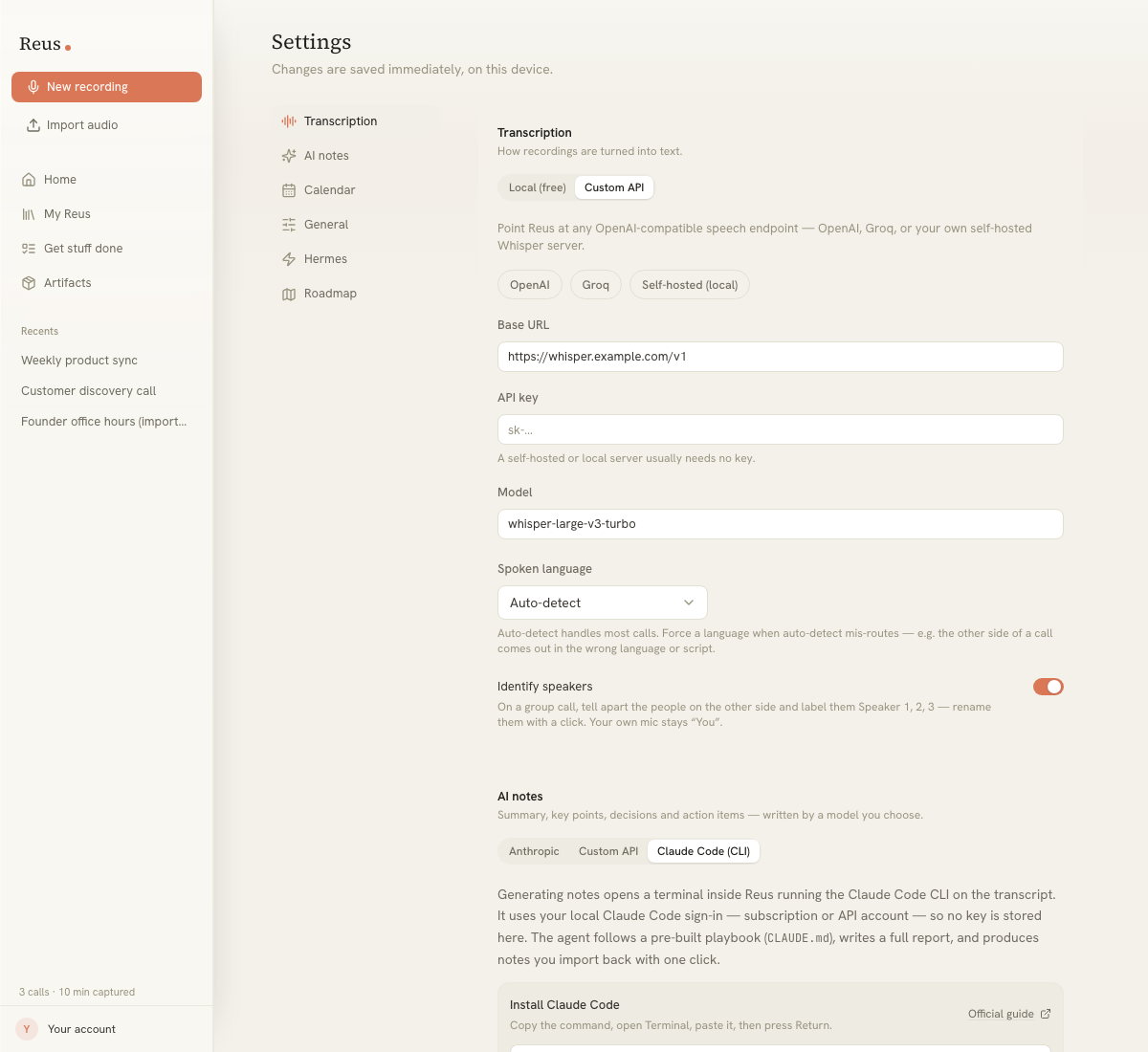
Run AI notes through your own endpoint too. Choose Custom API under Settings → AI notes for any OpenAI-compatible
/chat/completionsserver, or set a custom base URL for an Anthropic-compatible server or proxy.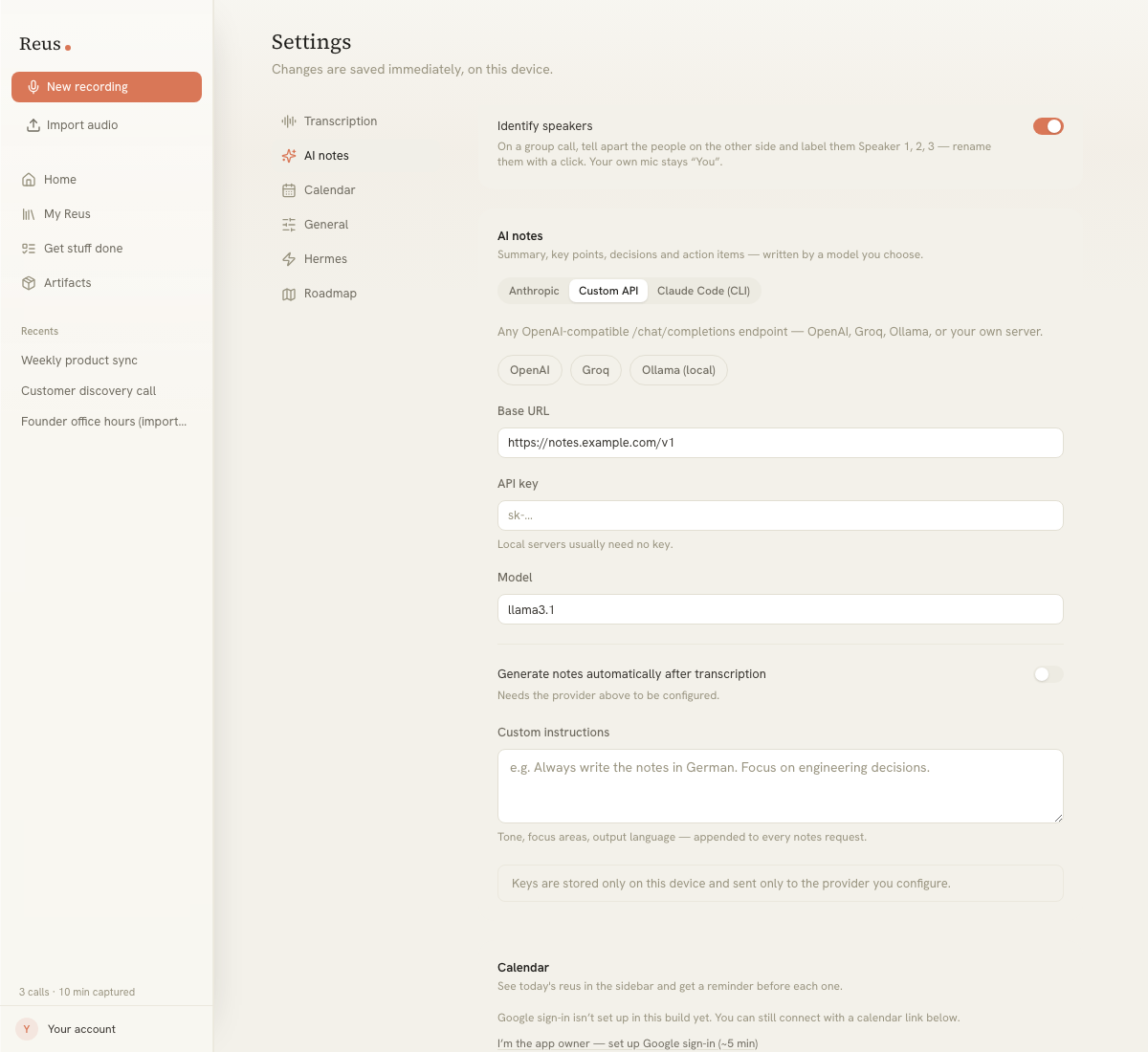
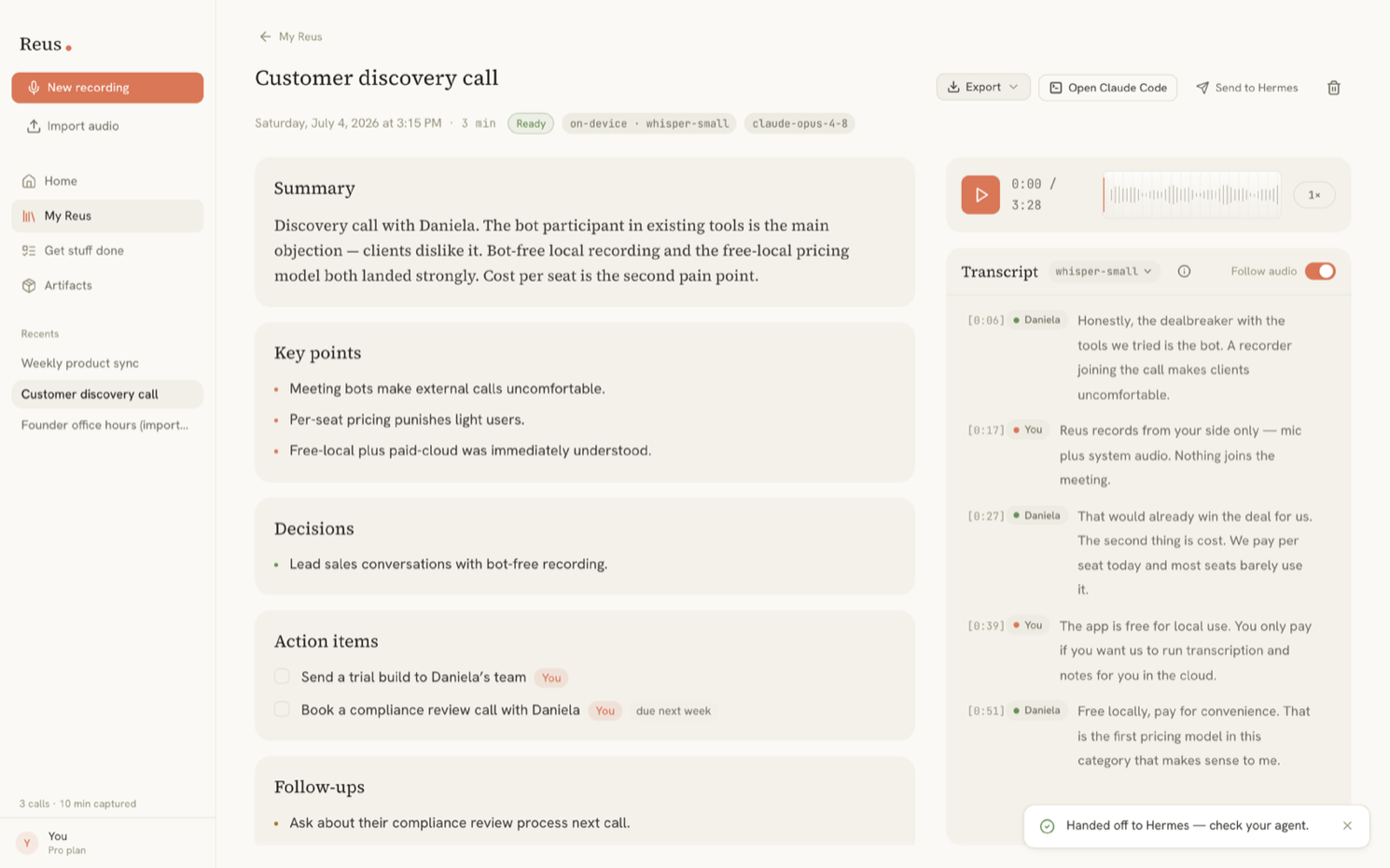
Hand a finished meeting off to your local Hermes agent. If you run Hermes, your own agent on your machine, Reus can now hand it a transcribed call so it does the follow-through — writing the notes, drafting the emails, docs and tickets, and filing them. Turn it on in Settings → Hermes, then use the new Send to Hermes button on a meeting. It's opt-in and desktop-only; your Hermes setup and everything it produces stay on your machine. When Hermes is connected, Reus hands each finished meeting to it automatically and lets Hermes write the notes — they show up marked Generated by Hermes — so your configured notes provider only runs when Hermes isn't around. You can turn the automatic handoff off in Settings → Hermes if you'd rather send each meeting over yourself.
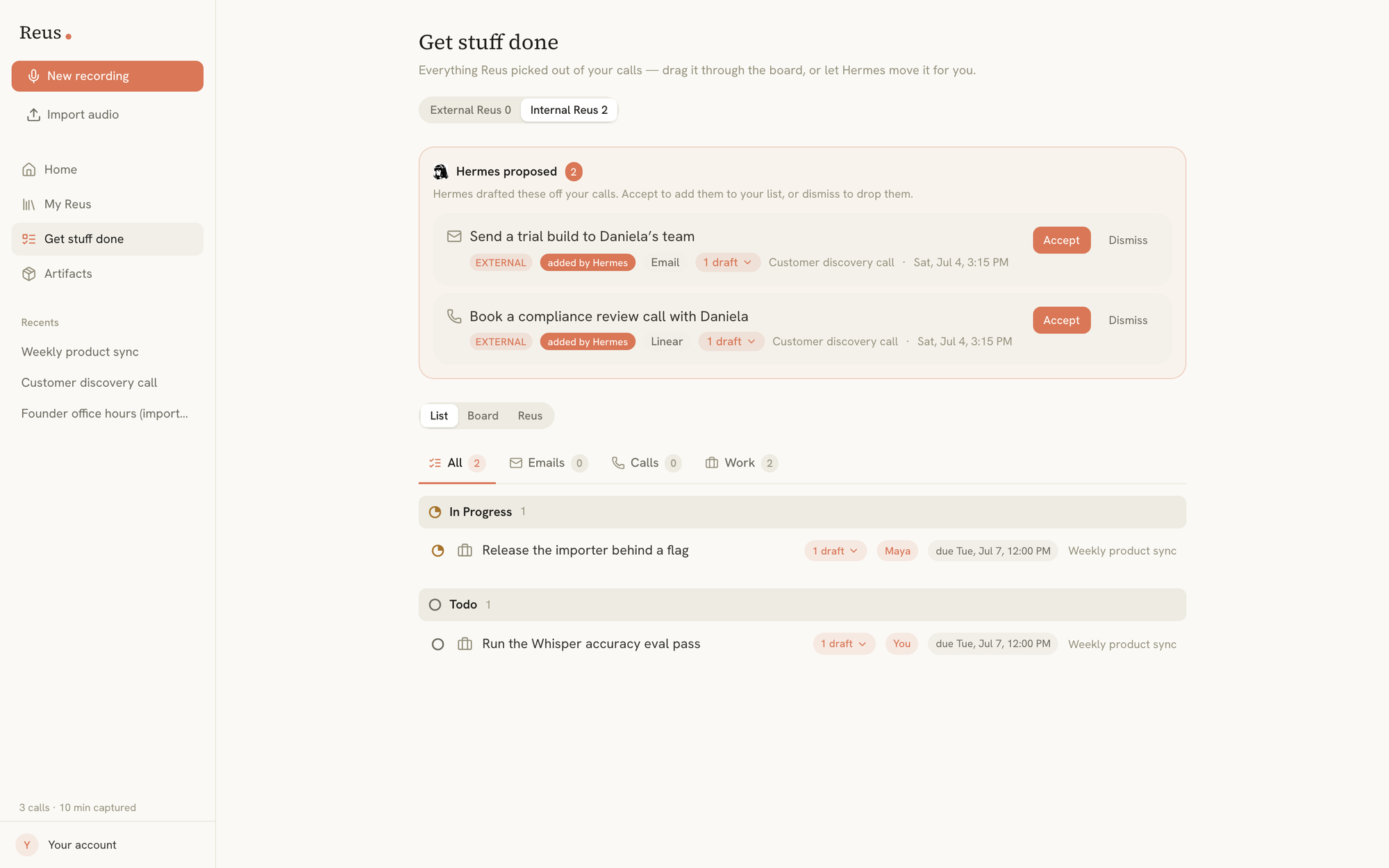
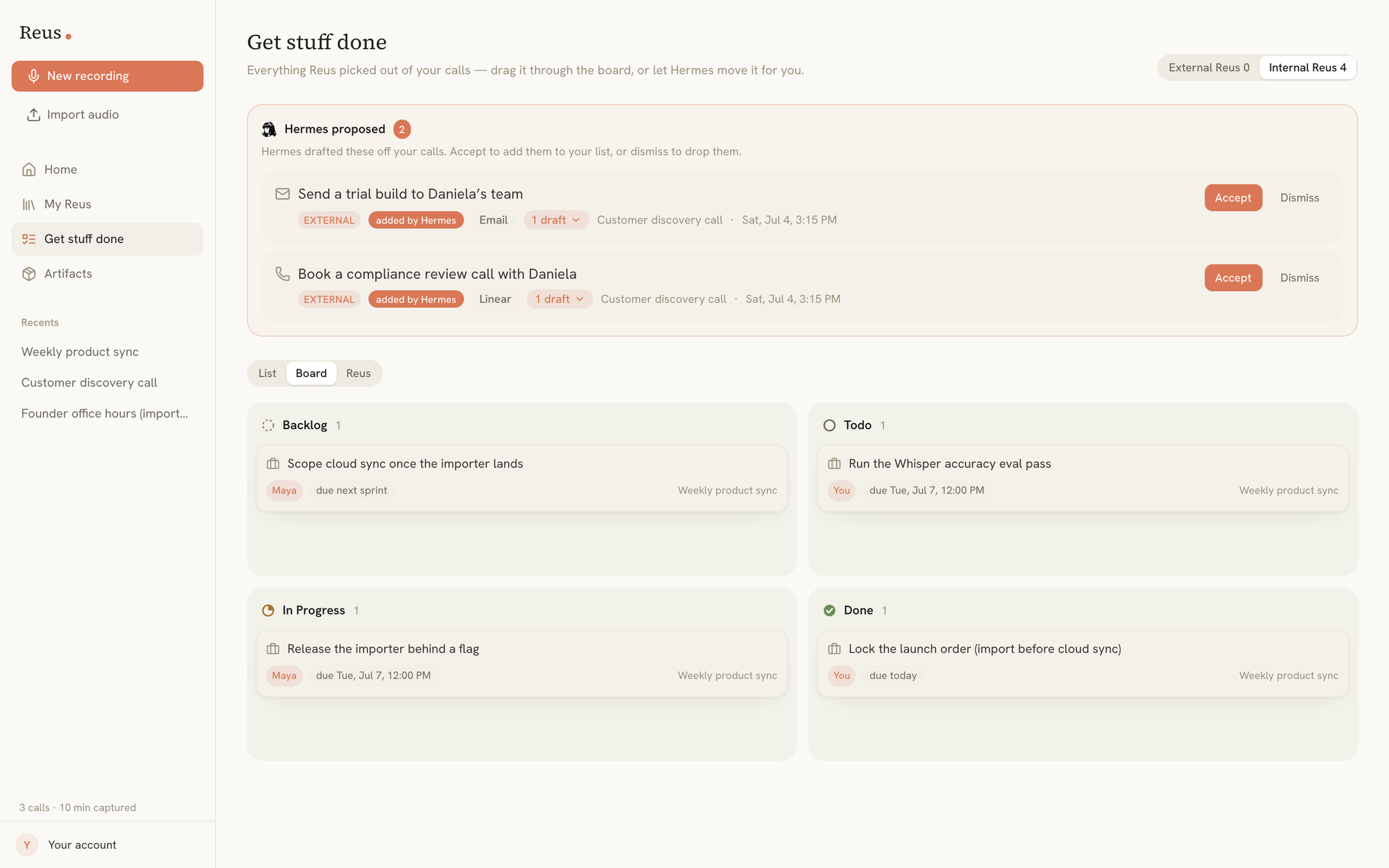
Review what Hermes drafted before it joins your list. When Hermes proposes follow-ups off your calls, they land in a Hermes proposed review lane in Get stuff done. Accept one to add it to your list or dismiss it to drop it, and expand any row to read the actual email, document or ticket Hermes wrote — with a Copy draft button — instead of just a one-line task. Anything Hermes authored is marked added by Hermes.
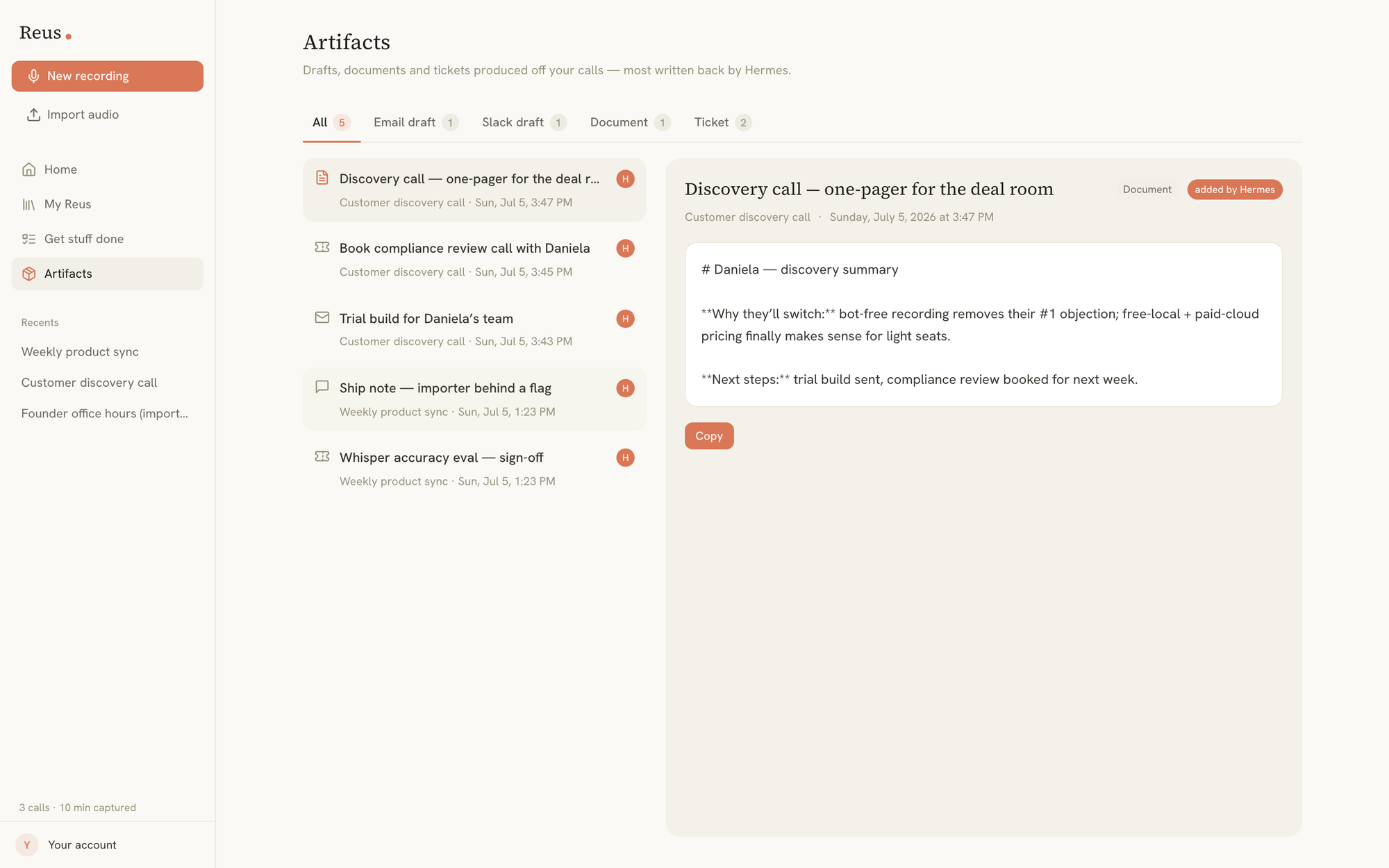
A new Artifacts tab collects every draft, document and ticket from your calls. Drafts, documents, tickets and links produced off your calls — most of them written back by Hermes — now gather in one browsable Artifacts view, with a filter by kind and a side-by-side layout to read each one and copy it. The same items also show in an Artifacts card on the meeting itself.
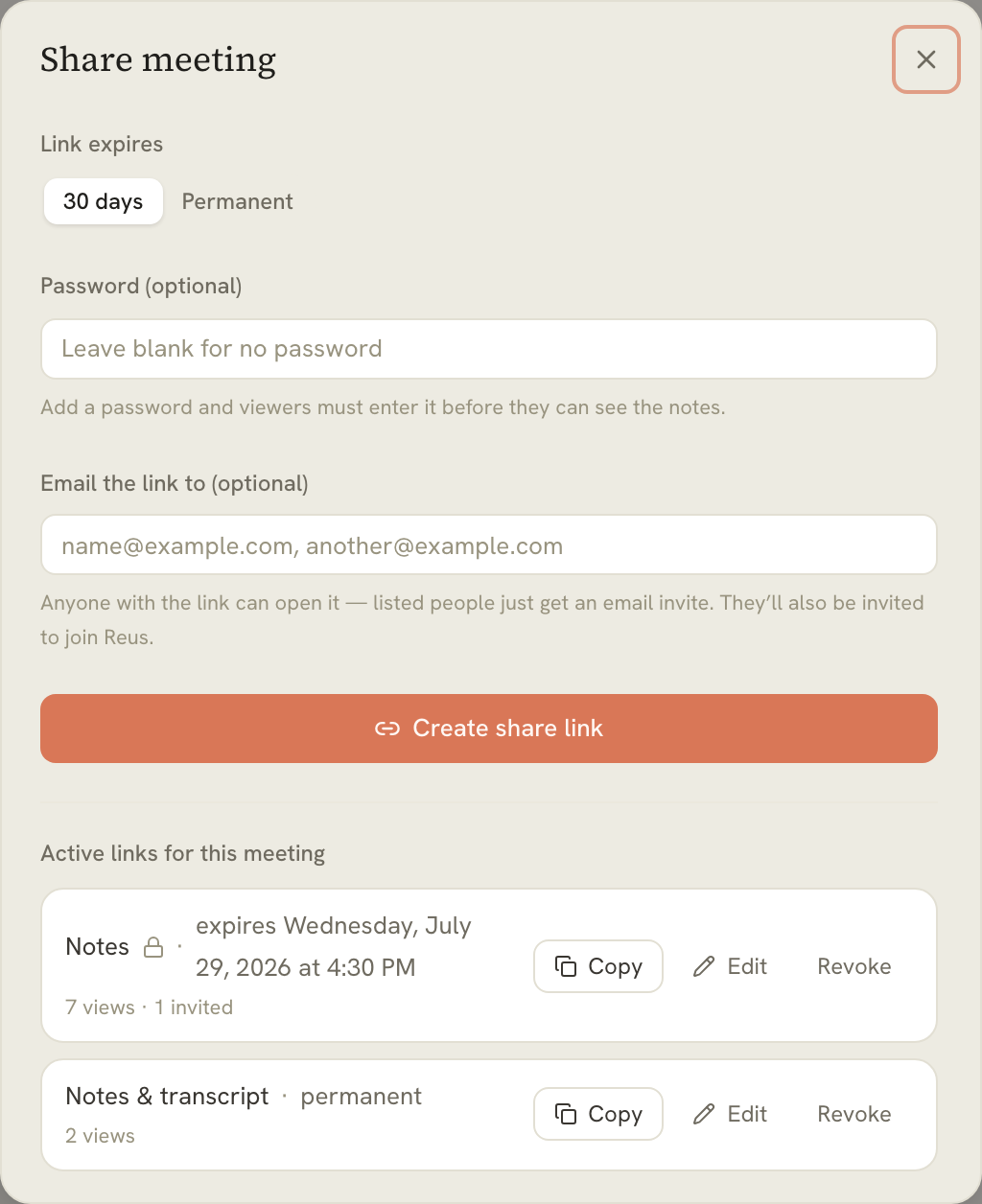
Re-copy any share link anytime. You no longer have to make a brand-new link every time you want to send one. Open a shared meeting and every active link now has a Copy button, so you can grab the same URL again to re-send it. Links you created before this release can get a fresh copyable link with one click via Get link — the previous link is replaced.
Protect a share link with a password. When you create a share link you can now set an optional password, and viewers must type it before they can open the notes. A lock badge marks protected links in the Active links for this meeting list.
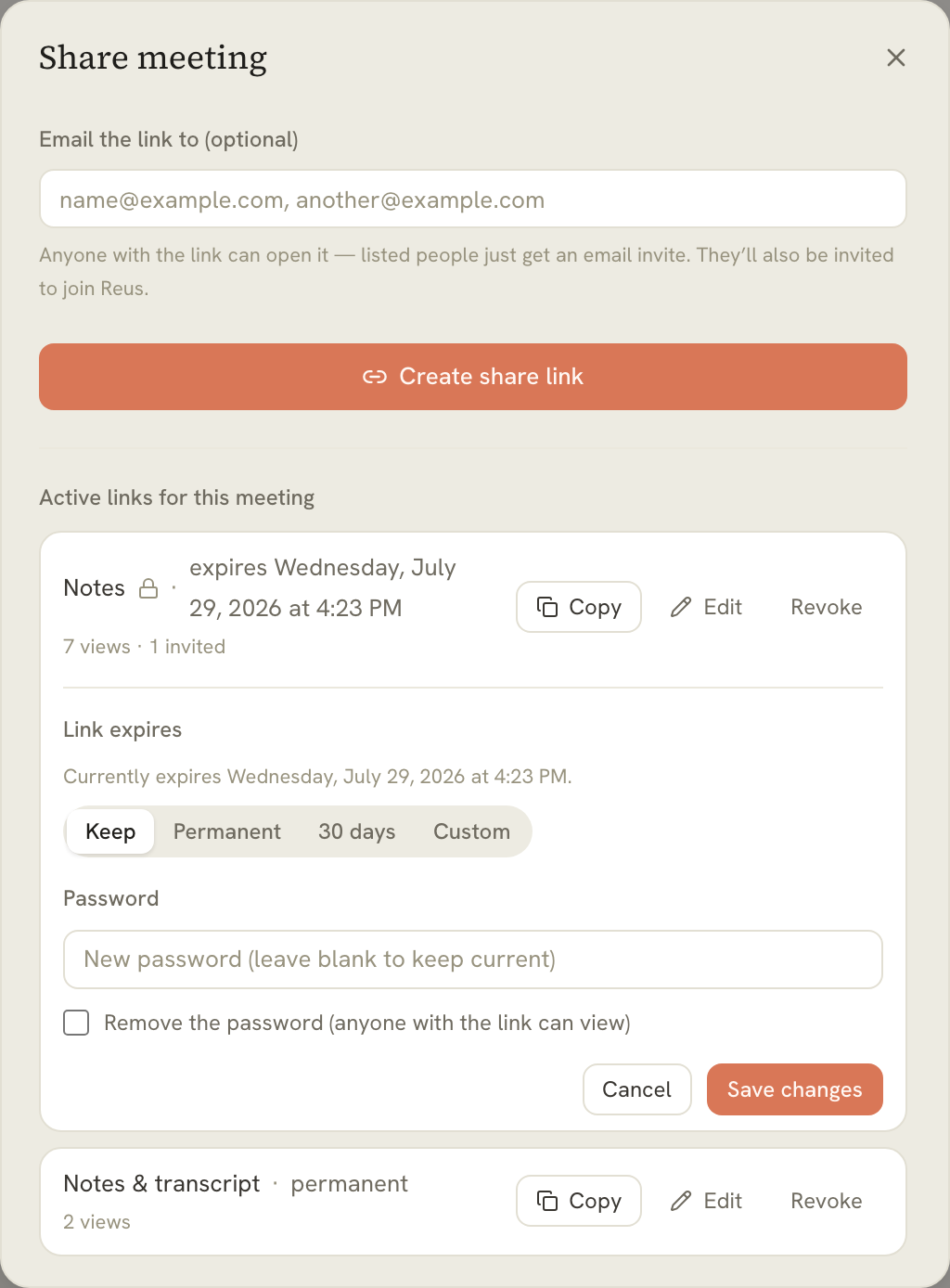
Change a share link's expiry or password after you've made it. Each active link now has an Edit panel where you can change when it expires — keep the current date, make it permanent, 30 days, or a custom number of days — and add, change or remove its password, without revoking the link and starting over.
Changed
Get stuff done is now a board with statuses and due dates. Your action items move through workflow columns — Backlog, Todo, In Progress, Done — instead of just checkboxes. There are three views: a List grouped by status, a drag-and-drop Board, and a per-call Reus view, and any item can carry a due date that turns red once it's overdue. If you use Hermes, it moves items through the same statuses you drag.
The recording time now lives in the Mac menu bar, and the floating overlay is smaller and simpler. While you record, the elapsed time counts up right next to the Reus icon in the menu bar — and keeps counting even if the app window isn't open. With the time up there, the floating overlay drops its own clock and shrinks to a slim pill: the Reus mark, a live level meter, and Pause and Stop.
Fixed
- Custom transcription and notes endpoints now work in the desktop app. Reus no longer blocks user-configured HTTPS providers in its packaged Content Security Policy; unencrypted HTTP remains limited to services running on the same computer.
- Your calendar stays accurate through busy weeks and clock changes. Reus loads every page of Google Calendar results, keeps the invitation status needed to hide declined meetings by default, includes meetings that cross midnight, and keeps repeating calendar-link meetings at the right local time through daylight-saving changes.
- Automatic recording can no longer cross from one call into another. Reus verifies that an automatic start still belongs to the same active call, including after audio setup, and cancels safely when the call ends or sign-in, settings or Reus Weekend make the start ineligible.
- Dark mode cards are dark again. Cards, metrics, inset panels and popovers now use Reus dark surfaces, restoring consistent contrast across the app.
- Switching your microphone or speakers mid-recording no longer crashes the app. Changing the audio input or output device while recording — plugging in headphones, switching to AirPods — could crash Reus and lose the meeting. Recording now follows the new default device automatically; in the worst case it stops cleanly and saves everything captured so far, instead of crashing.
- The recording overlay's Pause and Stop respond on the first click during a call. While you were on a call, the first tap on the floating recording overlay's Pause or Stop button did nothing — the overlay stays out of focus so it won't interrupt your call, and macOS was swallowing that first click. The first tap now fires the button, without pulling focus off your call.
- Losing your internet connection no longer logs you out, drops your call, or crashes the app. A brief network blip used to be mistaken for a sign-out — kicking you back to the login screen mid-recording, which looked like a crash and lost the call view. Reus now stays signed in through connection drops and keeps your in-progress recording running, and a device that was already signed in opens fully offline.
- A hiccup mid-recording can no longer freeze Pause and Stop or lose your recording. If the Reus window stumbled during a long recording, its Pause and Stop buttons could go dead while recording kept running underneath — and reopening the app used to clean the recording away. Now Pause and Stop on the floating overlay and in the menu bar act on the recording directly, so they keep working even when the main window is busy; the app also reconnects to a recording in progress after a stumble, and Stop always saves — if the window gives out mid-stop, Reus finishes saving the recording itself. Anything cut short by a crash or a forced quit is still recovered into your library the next time you open Reus instead of being discarded.
- Auto-recorded calls now stop on their own when the call ends, even if the app window is busy. A call Reus started recording for you used to keep running after the call ended if the window was stalled, leaving you to stop it by hand. Reus now ends and saves an auto-recorded call the moment the call wraps up, independent of the app window — so it stops when your meeting does. A recording you started by hand is still only ever stopped by you.
- The menu-bar recording time clears when recording stops. After a recording ended, the elapsed time could stay frozen next to the Reus icon in the menu bar. The menu bar now returns to normal as soon as recording stops, however the recording was ended.
0.5.0 — 2026-06-27
Added
- Share a meeting with a private link. Send a meeting's transcript and notes
through a private, revocable link on
share.getreus.com— anyone you send it to can open it, no Reus account needed. Choose to share the full meeting or notes only, and revoke access whenever you like. - Faster on-device transcription on Mac. Local Whisper now runs with flash-attention, voice-activity detection and a temperature cap — about 1.43× faster — plus an opt-in Apple Neural Engine path for up to 1.79× on supported Macs.
- GPU-accelerated transcription on Windows (optional). New Vulkan (AMD/Intel/NVIDIA) and CUDA (NVIDIA) builds run on-device Whisper on the GPU for faster local transcription; the standard Windows build stays CPU-only and macOS continues to use Metal.
Fixed
- Siri no longer starts phantom recordings. With macOS "Listen for 'Siri'" enabled, an invoked Siri session could look like a call and make Reus begin recording on its own. Reus now ignores it and only records real meetings.
- A disconnected device no longer discards your meeting. If a capture device drops mid-recording — Bluetooth headphones unplugged after a call, a USB mic pulled — Reus now stops gracefully and saves everything captured up to that point, instead of throwing the whole recording away.
- Cleaner display names. Accounts without a Google profile name show a tidied name instead of a raw dotted email, and a transient Google outage can no longer overwrite your saved name and avatar with blanks.
- macOS auto-update reliability. The Mac updater could fail with a 404 when
fetching a new version; releases now publish the exact filename the updater
expects, and the
.dmgis notarized so Gatekeeper accepts it.
0.4.0 — 2026-06-22
Added
- Cloud subscriptions. New Pro and Max plans add unlimited cloud transcription (fair use) and hosted AI notes, billed through Stripe. Subscribing unlocks your plan automatically; Opus "best notes" come as plan credits or top-up packs.
- Hosted AI notes. Generate notes in the cloud (Haiku / Sonnet / Opus) without bringing your own key — plan-gated, with Opus metered against your balance.
- Crash & error diagnostics. Reus keeps a rotating local log and, only when something goes wrong, uploads a redacted error report so problems can be diagnosed. Errors only — no tracking, no logs UI.
Changed
- Reworked pricing. Paid tiers get unlimited cloud transcription (fair use) and clearer model transparency. Plan cards only offer a real upgrade — no more "Upgrade to Pro" that would quietly downgrade a Max account.
- Consistent meeting titles. "Meeting — <date>" now renders the same everywhere (sidebar, header, library, search), regardless of operating-system date-format differences.
- Tidier window and sidebar. The app shell is locked to the viewport (no whole-window rubber-band scroll), the Recents list is capped with "View all in My Reus", and version/update info moved into a dedicated About section in Settings.
Fixed
- Windows: an audio device change no longer stops the recording. Switching the default device or a Bluetooth headset connecting mid-call is self-healing — Reus keeps recording instead of ending the session with "Default audio device changed."
0.3.0 — 2026-06-18
Added
- Recording overlay. A small floating, always-on-top pill appears while recording — live mic level, timer, pause and stop — so you can see and control the recording over any other app. Drag it anywhere; it stays where you put it.
- Focus mode. Starting a recording with the Reus window open tucks the window away to just the overlay; when the call ends, the window returns on the meeting you just recorded.
- Terms acceptance. Creating an account now records that you accepted the Terms of Service and Privacy Policy.
- Transcription model guide. An "i" button beside the transcript's model picker explains each on-device model's accuracy, speed and size — and shows it once automatically the first time you open a transcript.
Changed
- Stay signed in. Sessions are now long-lived and renew themselves while you use the app, so you don't have to log in again every few weeks.
- Faster repeat transcriptions. The on-device transcription model now stays loaded and is reused between runs instead of reloading hundreds of megabytes each time.
Fixed
- Recording is gated behind sign-in. A freshly installed, not-yet-signed-in app can no longer start recording from call auto-detection or the tray.
- Windows taskbar icon no longer looks undersized — the Windows icon now fills its canvas like every other app (macOS dock icon unchanged).
- macOS microphone permission stops being re-requested on every launch once
the app is signed with a stable identity (signed + notarized builds; or a
stable local cert for dev — see
docs/MACOS-PERMISSIONS.md).
0.2.0 — 2026-06-16
Added
- Windows. Reus now ships a Windows installer alongside macOS — recording, transcription and notes run the same on both. (Windows builds are unsigned for now: if SmartScreen warns, choose More info → Run anyway.)
- Speaker identification. On a group call, Reus tells apart the different people on the other side and labels them Speaker 1 / 2 / 3 instead of one "Others" — rename any of them with a click and the name flows through the transcript, notes and exports. Your own microphone always stays "You". It's conservative (only splits clearly distinct voices) and can be turned off under Settings → Transcription → Identify speakers.
Fixed
- The first-run Set up Reus permissions screen showed macOS-only wording — "Needs macOS 14.4 or newer", "quit Reus (⌘Q)" — even on Windows. It now speaks each platform's language: on Windows the microphone links straight to the Windows privacy settings and system audio is captured automatically (no permission needed); macOS keeps its System Settings deep-links. The new-recording sheet got the same per-platform treatment.
0.1.2 — 2026-06-15
Added
- The in-app update prompt (and Settings → Updates) now links to What's new, opening the changelog at getreus.com/changelog.
0.1.1 — 2026-06-15
Fixed
- Google sign-in failing with "Google's token endpoint answered with HTTP
401" (
invalid_client). The shipped build carried Google OAuth credentials that didn't match the real client. Owner setup is now always reachable — even when a client is already configured — so a wrong or revoked id/secret can be corrected or reset, and a locally-saved client no longer half-overrides the build (id from one source, secret from another). - Long compressed-audio imports getting stuck transcribing. Files the native engine can't open directly (Opus, m4a, mp3, …) are now decoded in the app and transcribed on the native whisper.cpp engine via a raw-PCM path, instead of hanging the slow in-browser worker on a 30-minute recording.
- getreus.com Download could land on the GitHub releases page during GitHub API blips. It now resolves the latest installer through GitHub's web frontend and never caches an error, so the click always starts the download.
Improved
- Transcription anti-hallucination — suppress non-speech and blank tokens and raise the no-speech threshold, so Whisper stops inventing text (often in a foreign script) over music and silence.
- Imported audio keeps the source file's last-modified time as its recorded date.
0.1.0 — 2026-06-11
First public release.
Added
- Desktop app (Tauri 2) for Windows and macOS
- Direct meeting recording — microphone plus system audio on Windows (WASAPI loopback); microphone on macOS
- Mic selection and live input level meters while recording
- Audio import (wav, mp3, m4a, mp4, aac, ogg, opus, flac, webm)
- Local-first storage: SQLite with FTS5 full-text search, recordings on disk
- Web app with the same UI
- Mic + shared tab/system audio recording via the browser
- IndexedDB storage, in-browser search
- Transcription
- On-device Whisper (Tiny / Base / Small) — free and offline, in both apps
- Cloud option: any OpenAI-compatible speech endpoint (OpenAI and Groq presets, custom base URLs incl. local servers), bring your own key
- Language hint and automatic transcription after recording
- AI notes — title, summary, key points, decisions, action items (owner + due),
follow-ups
- Anthropic (Claude) or any OpenAI-compatible chat endpoint, bring your own key
- Custom instructions for tone/focus, optional auto-generation
- Library — full-text search across titles, transcripts, and notes; player with synced, click-to-seek transcript
- Export — Markdown, JSON, SRT, VTT, plain text
- Landing page, shared warm-dark design system, and brand assets
- CI/CD — typecheck + build +
cargo checkon every push; tagged releases produce draft GitHub releases with Windows and macOS installers; landing + web app deploy to GitHub Pages
Known limitations
- macOS records microphone only (system audio is on the roadmap)
- Release binaries are unsigned for now — see docs/RELEASING.md